How to add sound effects and music to a chart race
Updated 9 Nov 20261 min read
To add sound to a chart race in GeoLens, press Add above the race's timeline and drag an effect such as Hit or Whoosh onto the Sound track, or click it to add it at the playhead. The music lane under it plays a tune cut to the race; the shuffle picks another.
What sound does in a race
This race ranks European price levels from 1995 to 2025. Its music is cut to the race, and sound effects land on the passes the captions name.
Sound is timed to the race: change the years and it moves with them.
Bar chart race of price levels in 14 European countries, 1995 to 2025, with Iceland highlighted.
How to add sound, step by step
Four steps on the race above. Each picture shows the control to use, ringed in gold.
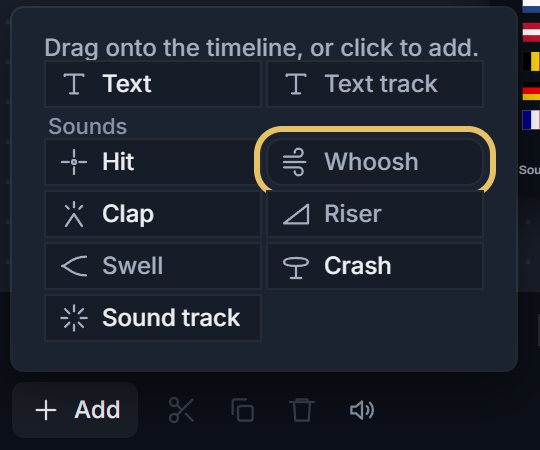
Press Add above the timeline. Under Sounds sit six effects: Hit, Whoosh, Clap, Riser, Swell and Crash. Drag one onto the Sound track, or click it to add it at the playhead.
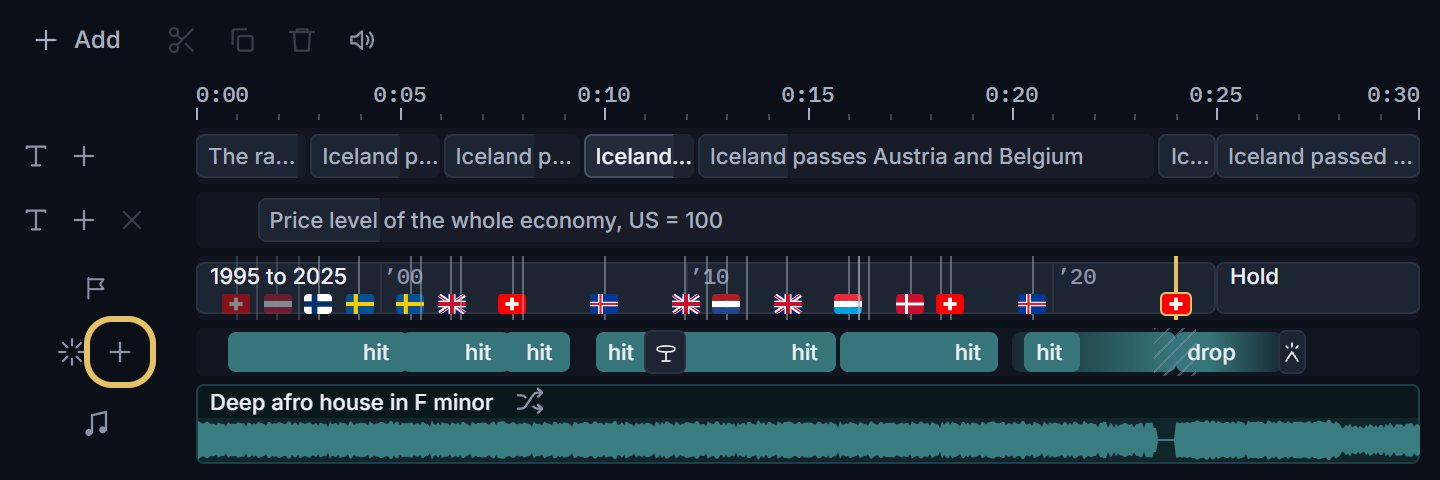
Each track has a + in its head. On the Sound track it adds a hit at the playhead.
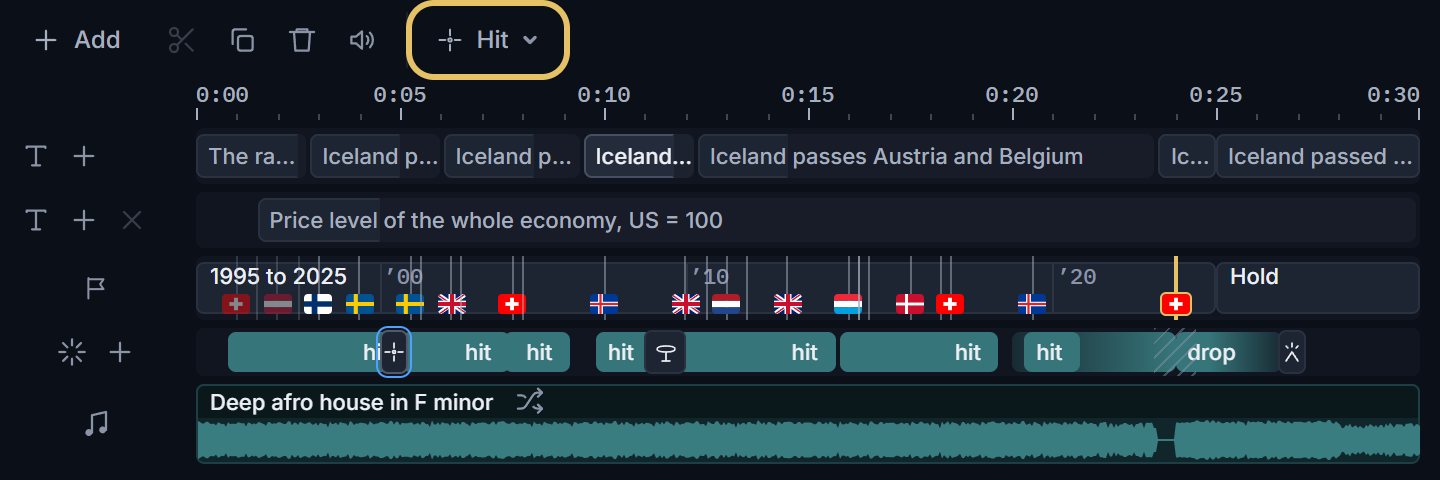
Select a sound to change it. The menu above the timeline swaps a Hit for a Whoosh, a Riser or another of the six.
The music lane plays a track cut to the race. Press the shuffle beside its name for another tune.

TipPut a sound only where something happens on screen, such as a pass or the last year.
How much sound a race needs
One effect on each pass the captions name, and the drop on the biggest one, is plenty. A sound on every flag turns the race into noise.
Many people watch with the sound off, so every pass that matters needs words on screen too.