How to publish a chart: public, private, link or embed
Updated 8 Nov 20261 min read
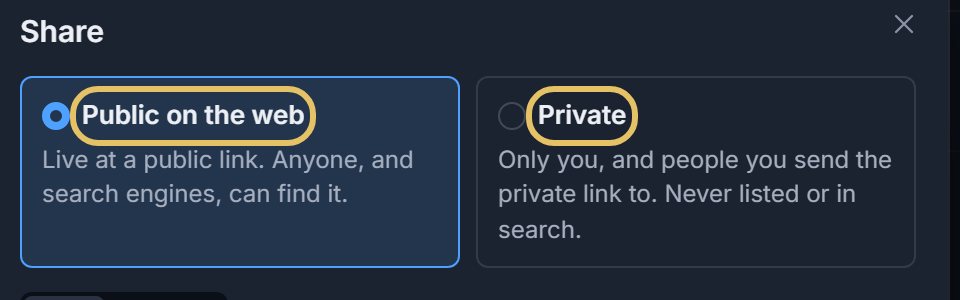
Press Share, choose Public on the web or Private, then copy the link or switch to Embed and copy the code. The same panel drafts a caption and alt text for your post. Public charts can be found by anyone and by search engines; private ones only by people you send the link to.
Public or private
A public chart lives at a public link that anyone, and search engines, can find. A private chart is for you and the people you send the private link to; it is never listed or searched. Private links come with PLUS.
A new chart is a draft until you choose one in Share, and you can change it there any time.
How to publish, step by step
Four steps on a saved chart. Each picture shows the control to use, ringed in gold.
Press Share at the top right.

Choose Public on the web or Private.
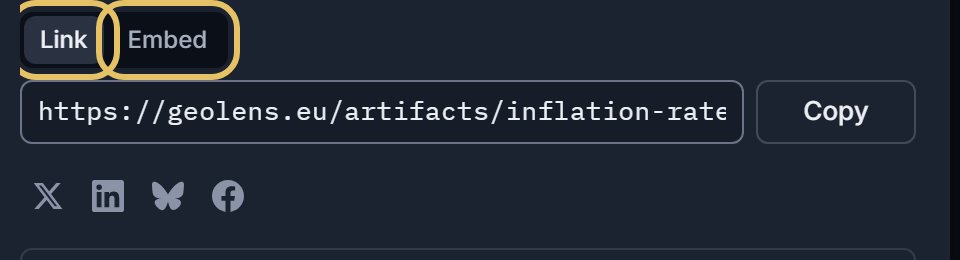
Link gives a page address to paste anywhere. Embed gives code for an HTML block on your own site. Press Copy.
Open Post text for a caption and alt text drafted from the chart, with the character count for the network you pick. Copy each one into your post.
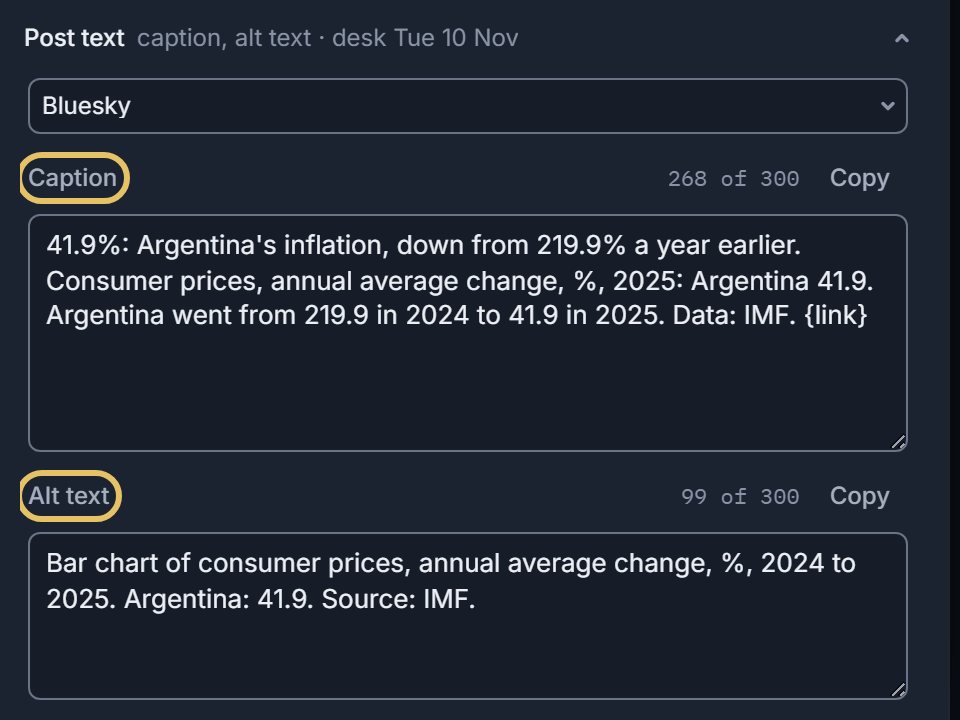
TipAlways paste the alt text too. It is what a screen reader reads in place of the picture.
What a reader sees
The link opens the chart on its own page. The embed draws the live chart inside your page: the guide to embedding has the details on pasting and updates. The buttons under the link post to X, LinkedIn, Bluesky and Facebook.
Before you share
Read the title, the source line and the years once more: they are what the link shows. The embed is an iframe: the code starts with the frame's address, so paste it into an HTML or code block.
If you only need a picture for a post, download the PNG instead and use the caption and alt text from the same panel.