How to export a chart as PNG, SVG, CSV or video
Updated 8 Nov 20261 min read
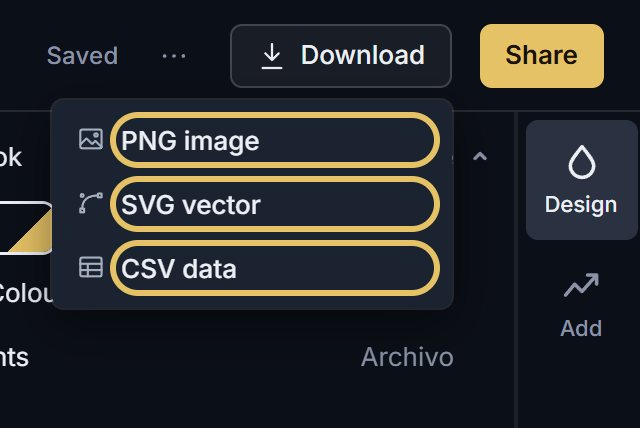
Press Download at the top right and choose PNG image, SVG vector or CSV data; a race also offers Video. The file is written in your browser from the chart you see. Free exports the standard PNG; PLUS adds a higher resolution, SVG, a transparent ground and video.
Which file for which job
PNG for a post, a slide or a document. SVG when a designer needs to edit the chart as vector shapes. CSV for the numbers behind the chart, which is handy for a table in an article. Video is an MP4 of a race.
How to export, step by step
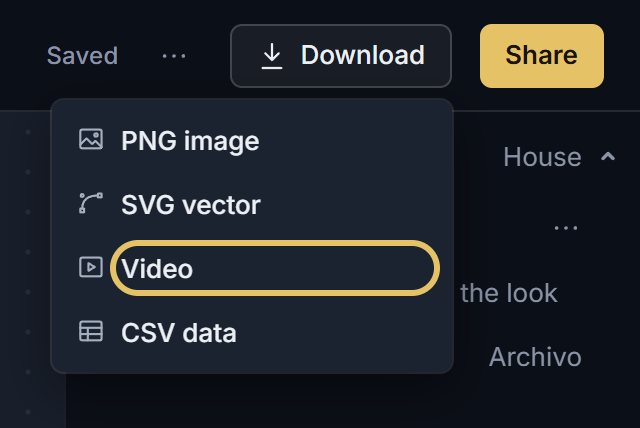
Five steps. Each picture shows the control to use, ringed in gold.
Press Download. The menu lists the files this chart can make; a file your plan does not include carries a plan chip.
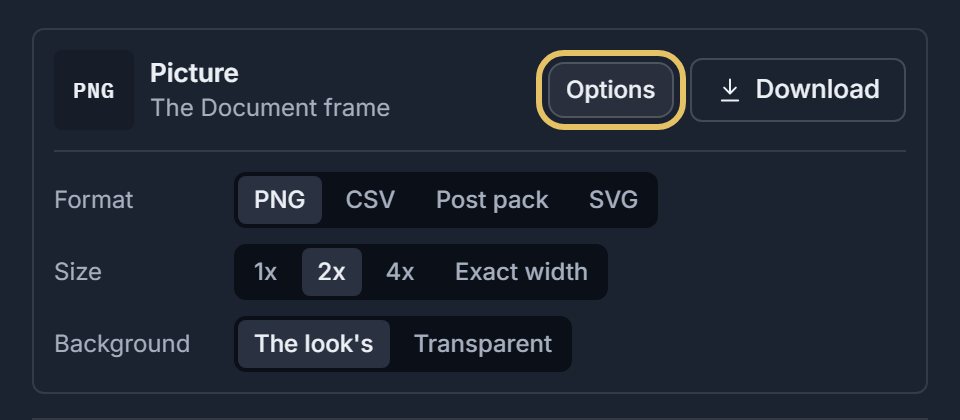
In Share, the Picture card has Options. Open them to set the file's format and size.
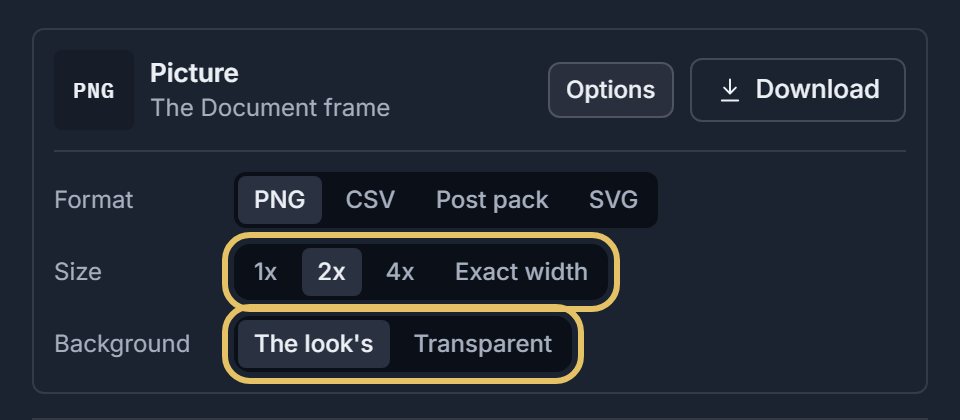
In the Document frame, choose the PNG size, 1x, 2x or 4x, or an exact width, and a transparent background. The pixels show under the picture.
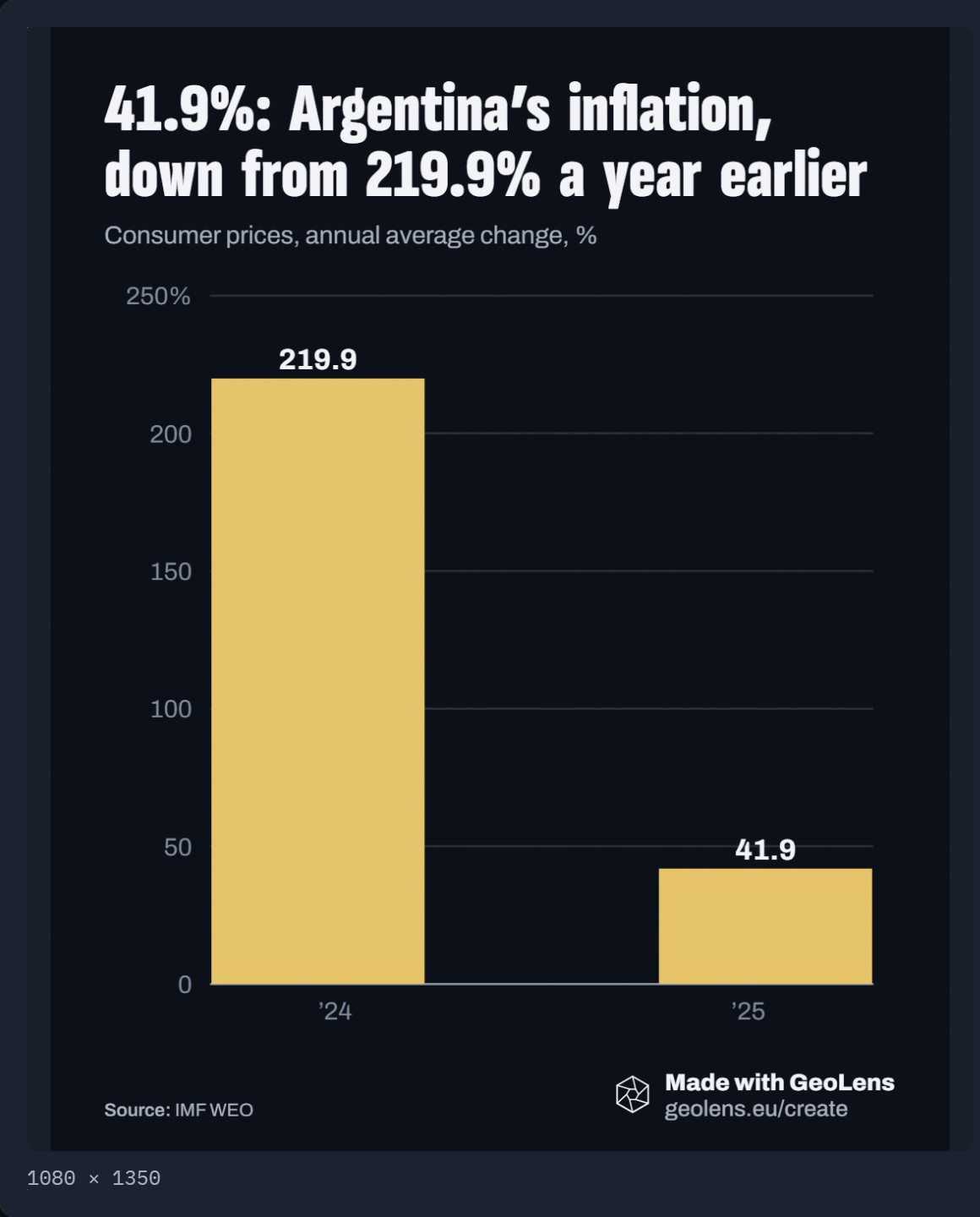
A Post, Link card or Story frame is written at the frame's own pixels, such as 1080 by 1350 for the Post.
On a race, Download also offers Video: an MP4 in the 4:5 or 9:16 shape.
TipExport from the frame you will post in. The Post frame needs no resizing.
What each plan exports
Free writes the standard PNG. PLUS writes a high-resolution PNG, SVG, an exact width, a transparent ground and video. PRO writes an ultra high-resolution PNG.
The file carries the source line and, unless PRO removes it, the GeoLens mark.
Check the file before you post
The pixel size of the picture shows under it in Share, for example 1080 by 1350 for the Post frame. Open the file at full size and read the title, the labels and the source line once.